








SmartQueries Authoring


Introduction
This tool helps dataprovider to define SmartQueries. Those query will be used by users to perform search and view result on a map.
To illustrate how to use this tool, let's take an example and define a SmartQuery for the landslides use case :
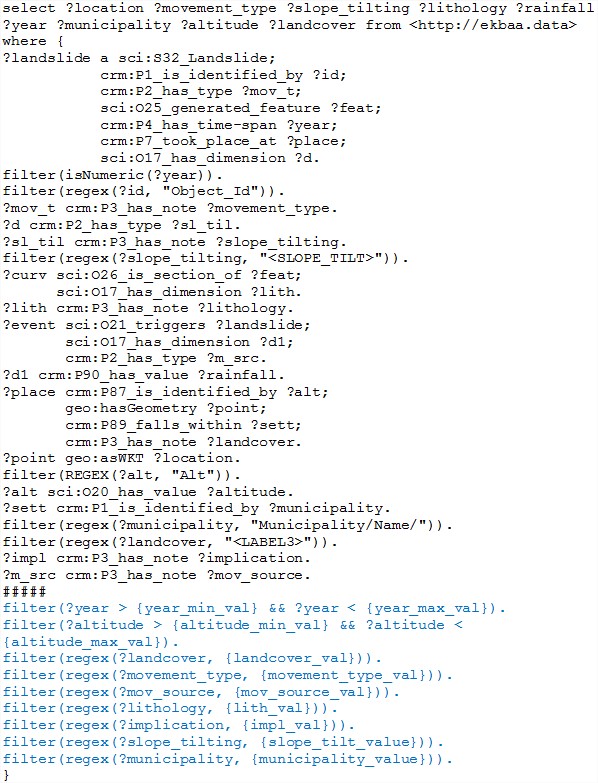
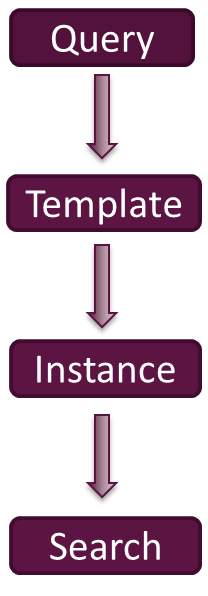
In order to define a SmartQuery, you need to create a Template, which basically contains all the information to perform a SparqlRequest.
After you have created that template, you can define an Instance of it and then execute the search query to see the result on a map.
All those steps will be explain in more details in the parts below.
Add a new Template
Main view
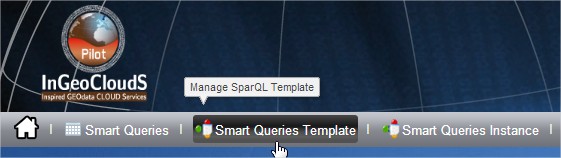
Open the Smart Queries Template module from the Data Provider Toolkit Project.
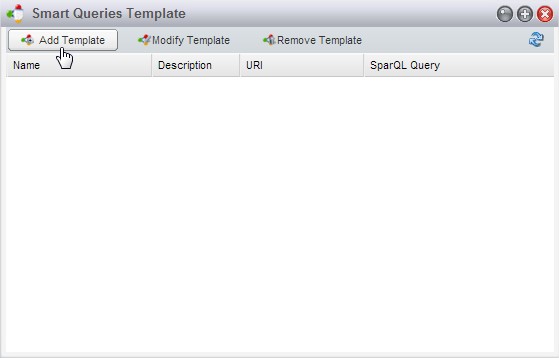
Then click on the « Add Template » button to open the template window properties.
Template properties
General properties
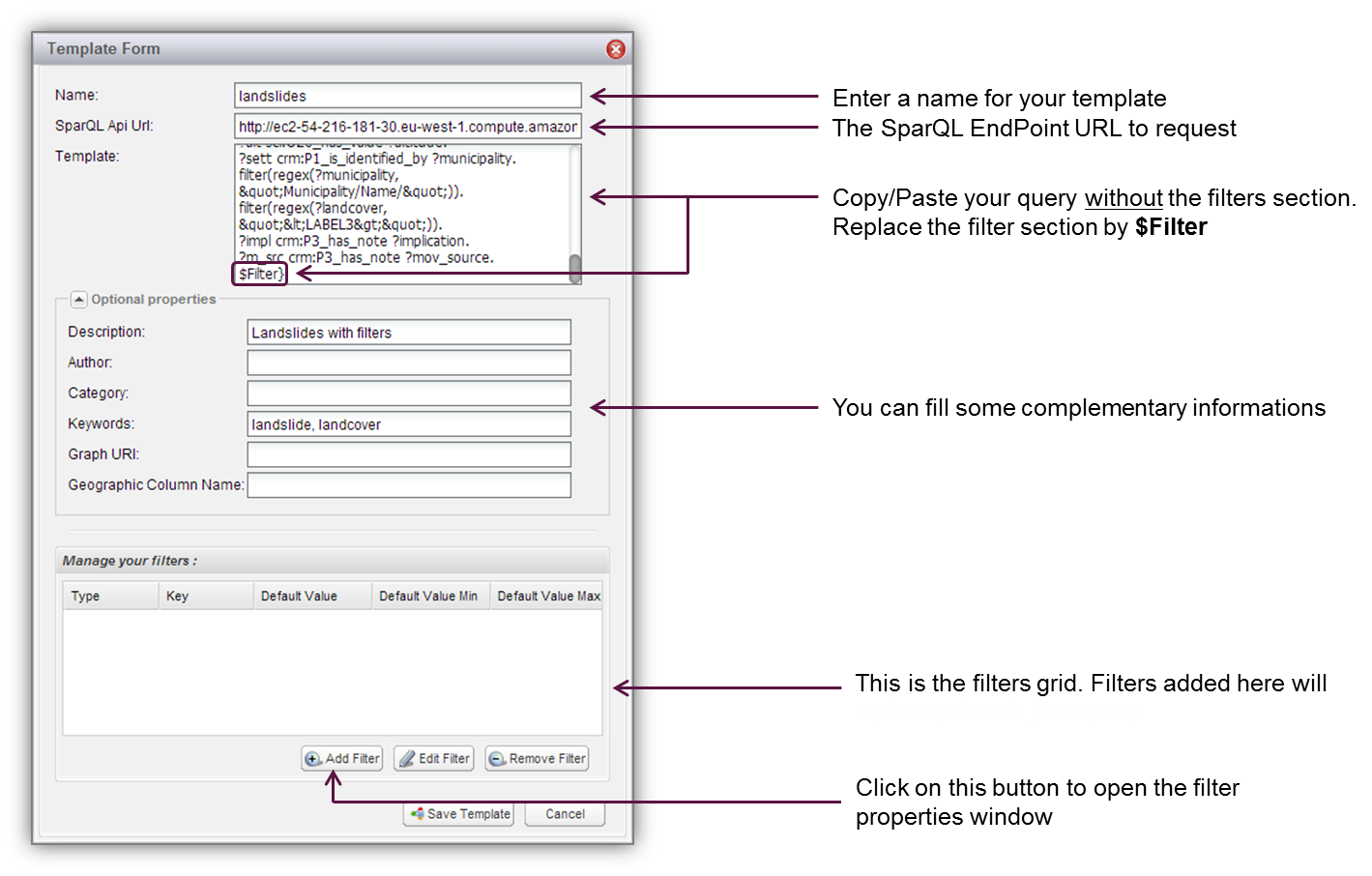
Filter properties
Different kind of filters are availlable
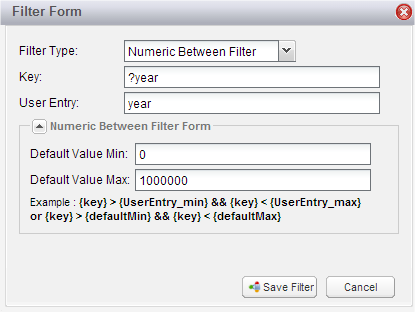 Numeric between filter
Ex : filter(?year > {year_min_val} && ?year < {year_max_val}).
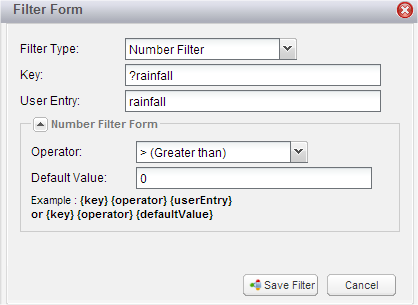 Number filter
Ex: filter(regex(?rainfall > {rainfall})).
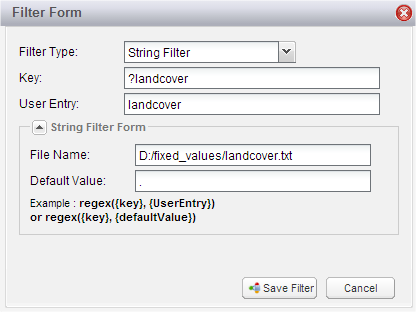 String filter
Ex : filter(regex(?landcover, {landcover_val})).
Save the template
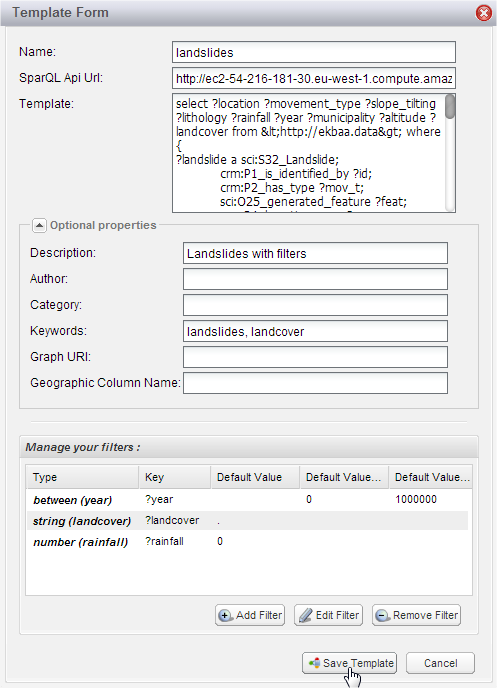 Once your filters are added,
you can click on “Save Template” button to save and close the properties window.
Once your filters are added,
you can click on “Save Template” button to save and close the properties window.
Add a new instance
Main view
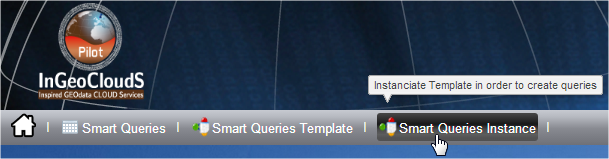
Now open the Smart Queries Instance module from the Data Provider Toolkit Project.
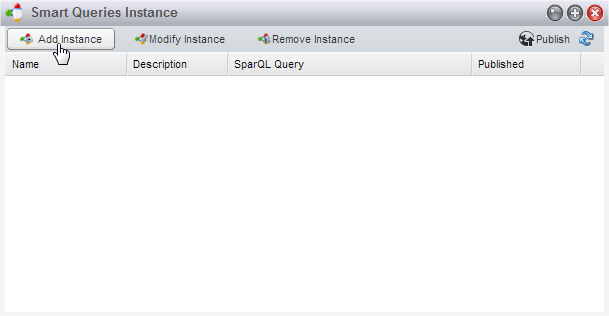
Then click on the « Add Instance » button to open the window properties.
General properties
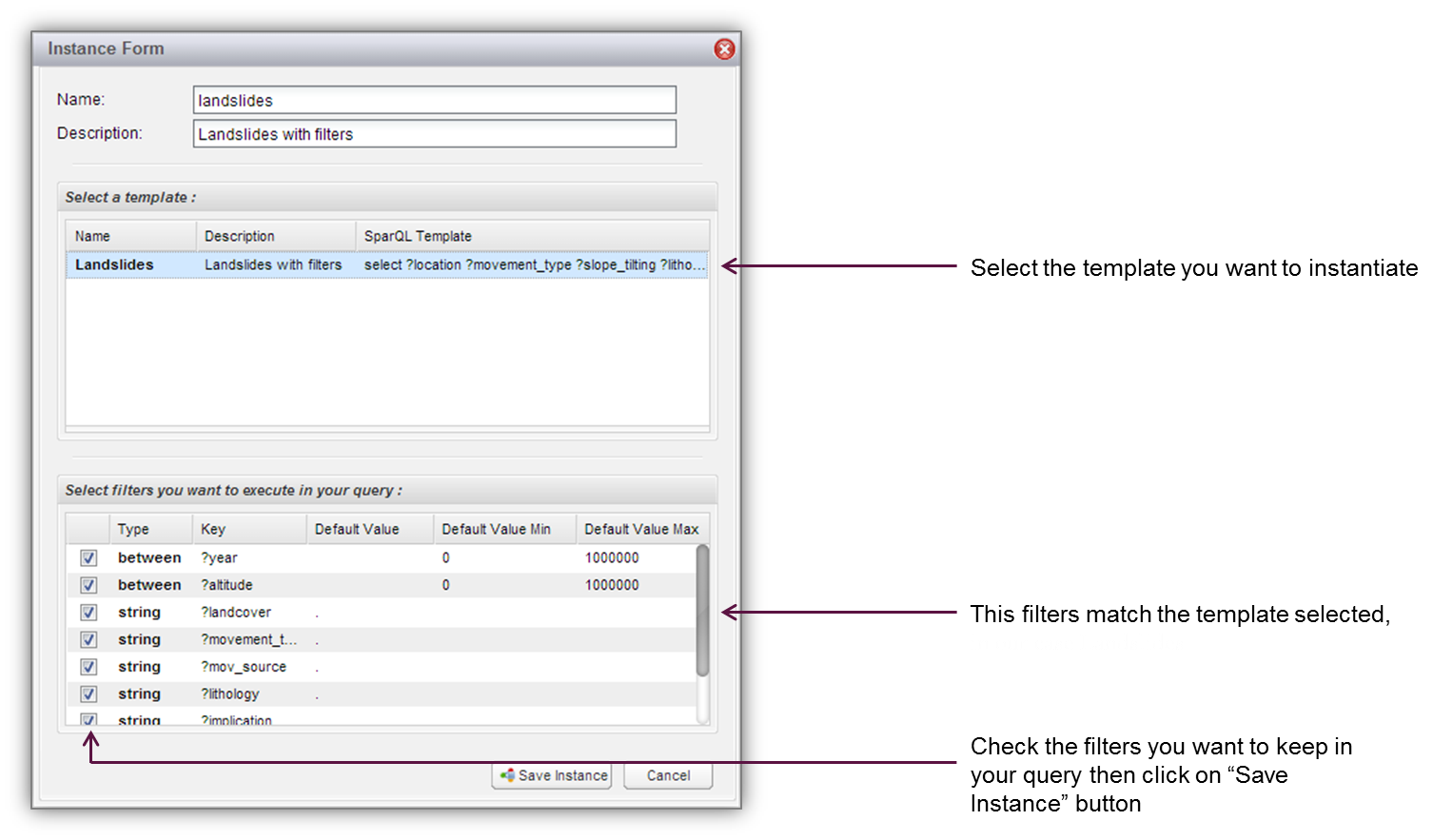
Publish an instance
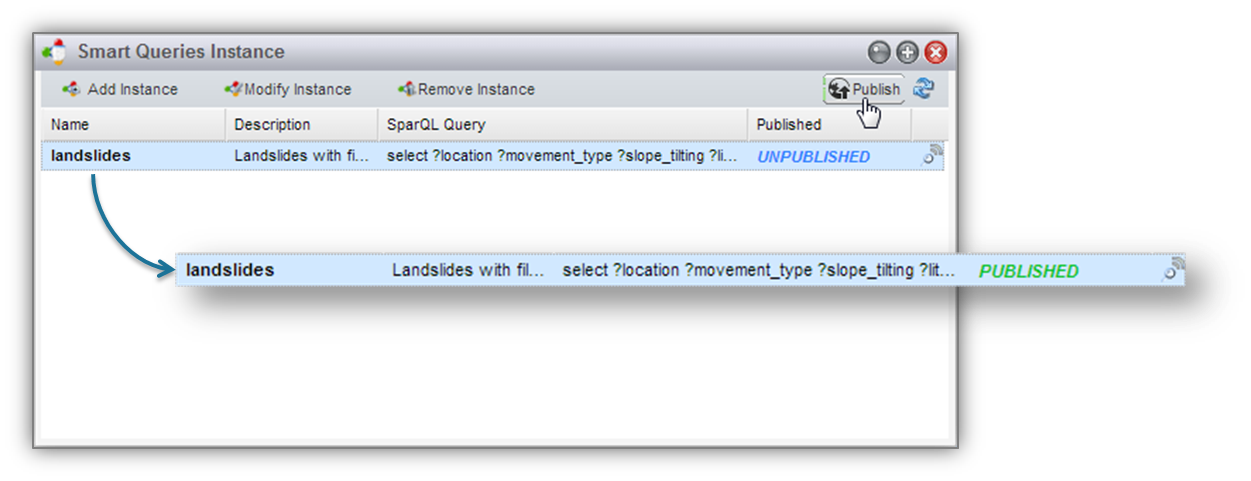
Once your instance is created, you will have to publish it to make it accessible from the Smart Queries module.
Request the SmartQuery
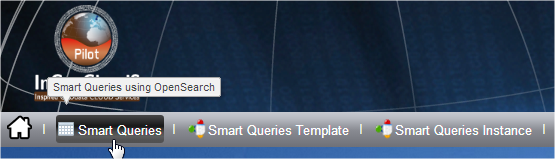
Open the Smart Queries module from the Smart Queries Project.
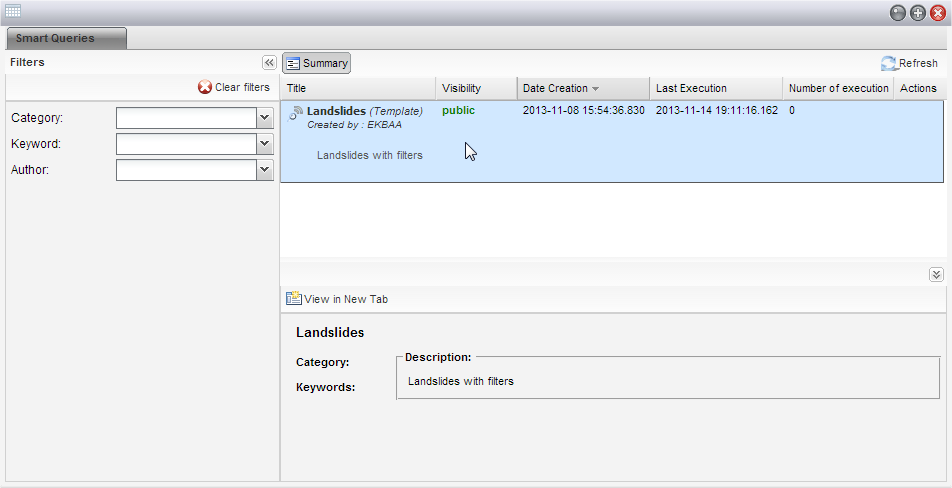
On the main panel, you access all your instances. You can filter them by category, keyword and author to see only instances that you want.
Double click on the instance you want to execute to display the query form.
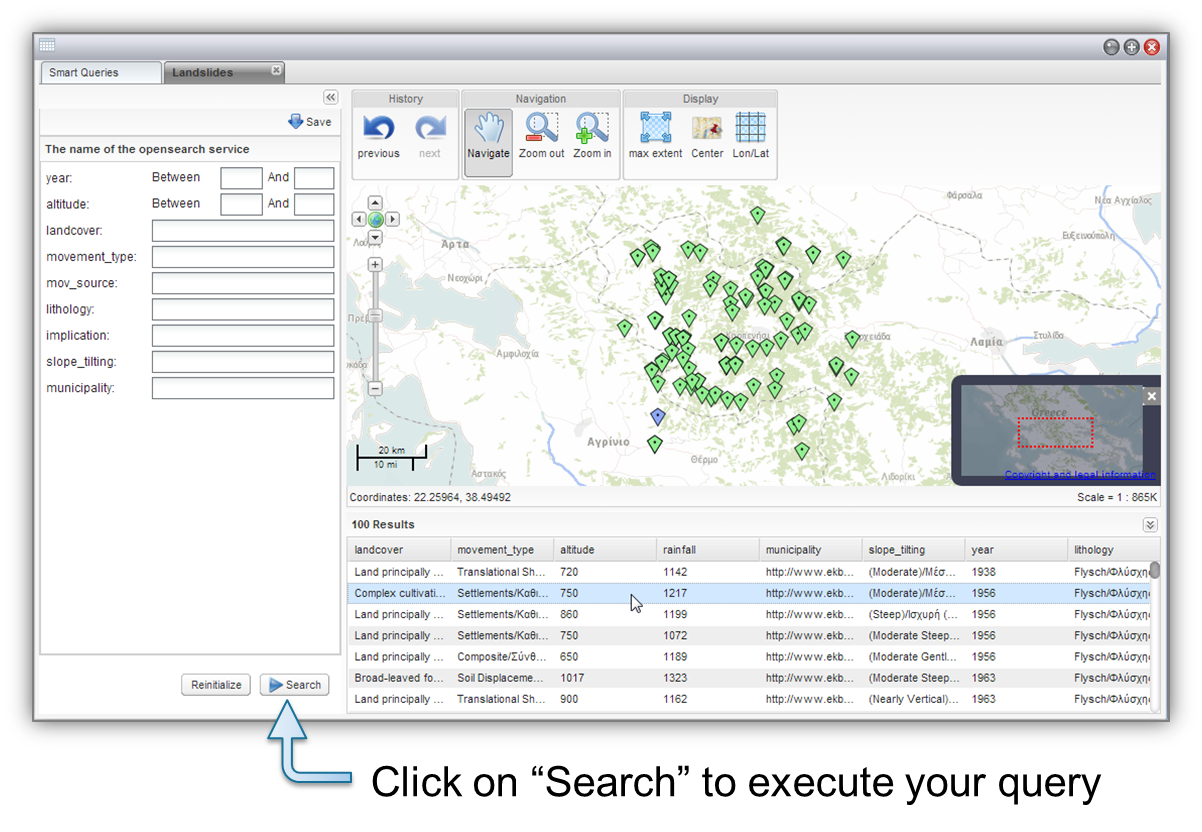
You can fill in the form fields or leave them empty. In that case, default filters values will be used.
Then launch a query search and view the results on the map and the grid above.
- Log in to post comments
Last updates
Project's Calendar

Only for consortium members
Contact: you can contact the Consortium using the generic address: contact [@] ingeoclouds.eu. Thanks!
This project is partially funded by the European Commission CIP Program. This website reflects the views of the authors only, and the Commission cannot be held responsible for any use which may be made of the information contained therein.

InGeoCloudS Users Documentation and other documents of this Web
site by the InGeoCloudS consortium members
are licensed under a Creative Commons Attribution-NonCommercial-ShareAlike 3.0 Unported License.
Based on a work at http://www.ingeoclouds.eu/.
Ad banners and pictures are (c) AKKA Technologies